
Surveywell - Gorgias integration

How to add a survey in Signature for Gorgias

Add a signature NPS or CSAT Survey to Gorgias in a few minutes.

1/ Create a new Survey

Head over to your Surveywell account and create a new Survey in the Surveys tab.

2/ Set Survey type as "Signature"

When creating the Survey, choose "Signature."
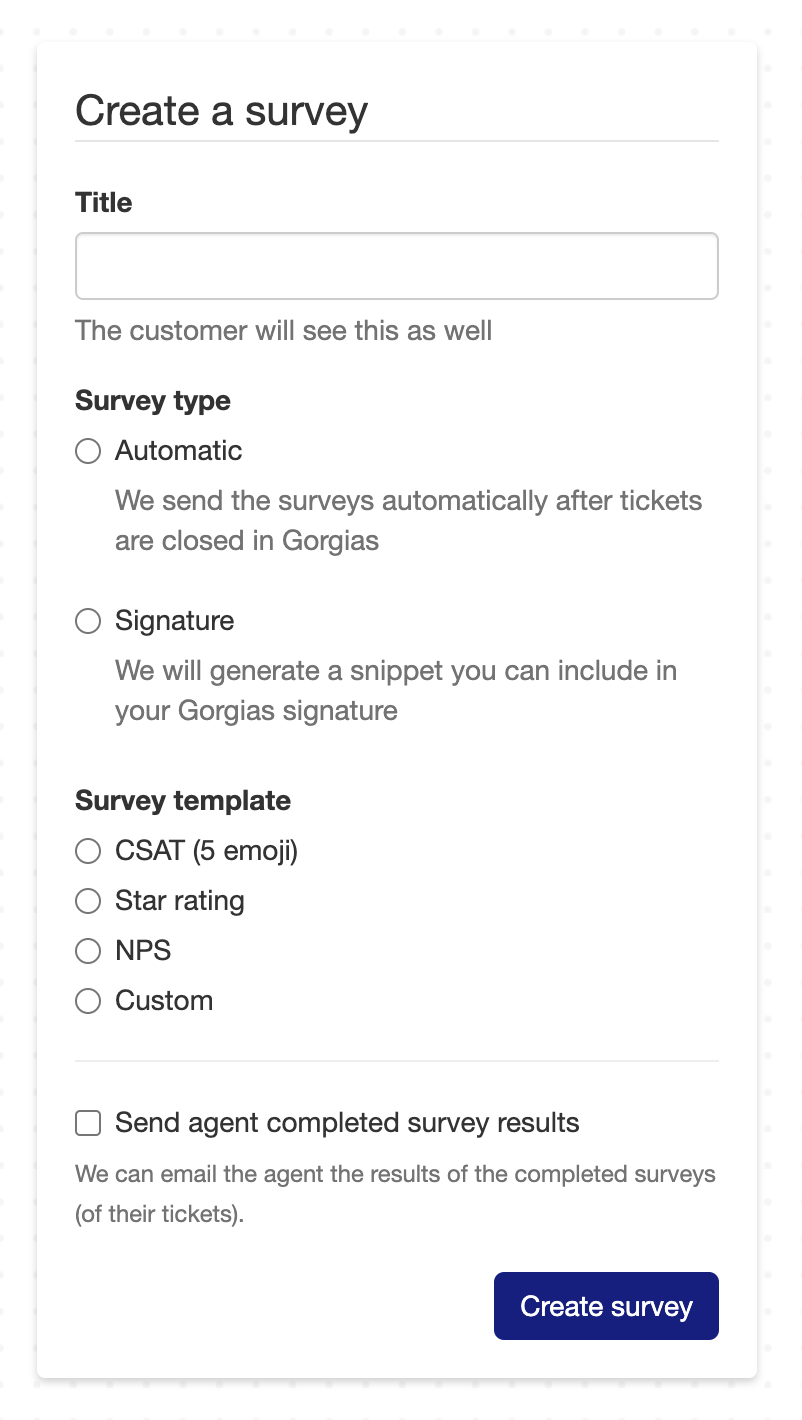
3/ Configure your survey, then copy it

Edit Survey type, look and feel and so on, then under "Generate signature", copy the survey. This will be added to Gorgias.
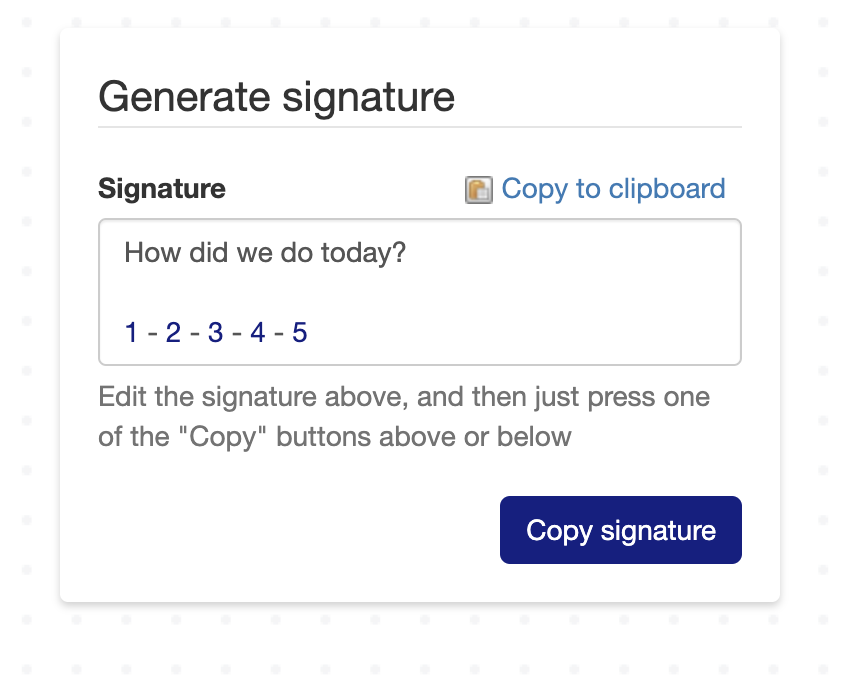
4/ Add the signature block in Gorgias

In Gorgias, go to the signature settings in email setting and add the copied block to the ticket editor.
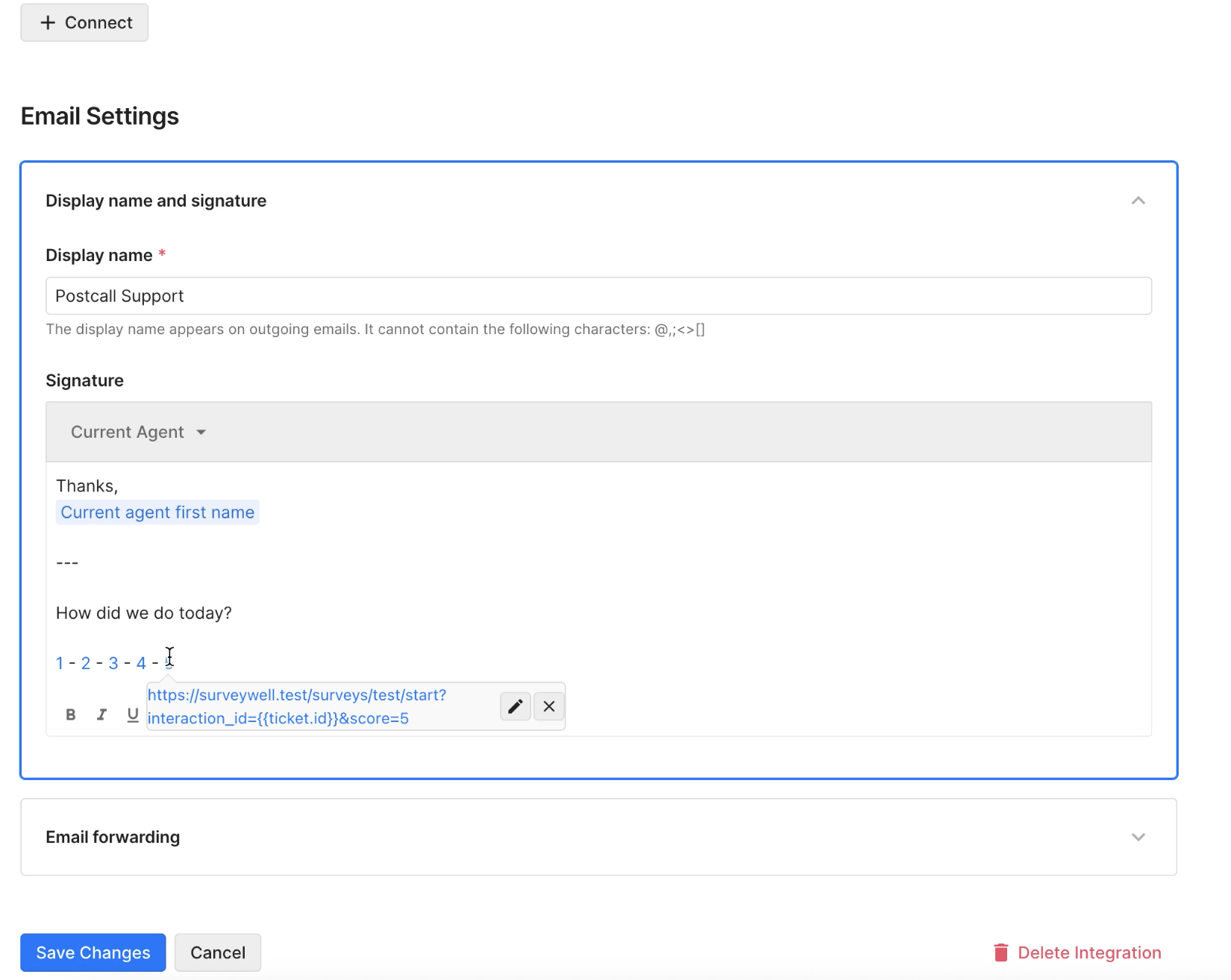
‍

Voilà! Your survey is added as a signature.

When someone clicks on a signature survey, we open a “blank” survey, pre-fill the score, and then they can answer the remaining questions.

4/ Important to know about Signature Surveys

  • Surveywell knows which ticket the survey belongs to, so we can link it back, and can log the results in Gorgias.
  • Gorgias only allows to have 1 survey per ticket. As a result, the “latest” survey of a given ticket will be synced into Gorgias, in case the user answers multiple times.

‍